
The Configuration Files page provides the ability to upload configuration files directly into Nipper OmniSight. These configuration files do not persist to disk, instead they are stored in memory for 24 hours, however this duration can be updated in the Settings page. Once the TTL expires the files will be automatically deleted.
Configuration files can be re-uploaded at any time
Note: Configuration Files is only available to users in the Administrators group or the NOC group.
Uploading Configuration Files
Clicking on the Configuration Files link on sidebar menu, you will be navigated to the upload configuration files page.
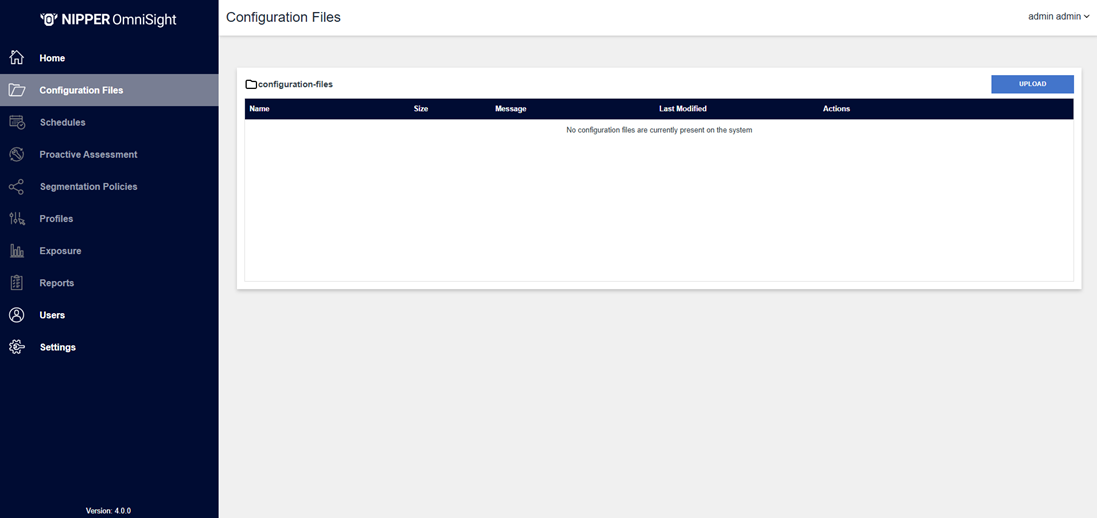
Click the Upload button to add configuration files. A pop-up window will appear, allowing you to select a file and provide an upload message.
Note: Uploads are restricted to ZIP files with a maximum file size of 100 MB. A ZIP file containing multiple files must contain a folder structure as this is used to Label the configuration files, see Section 5.4.3. You must supply an Upload Message to upload the files. Multiple file uploads are not supported at this time.
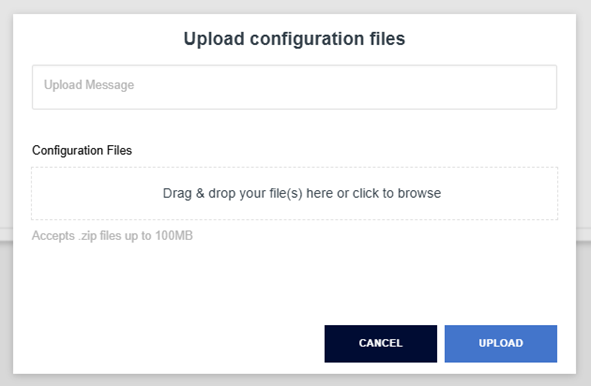
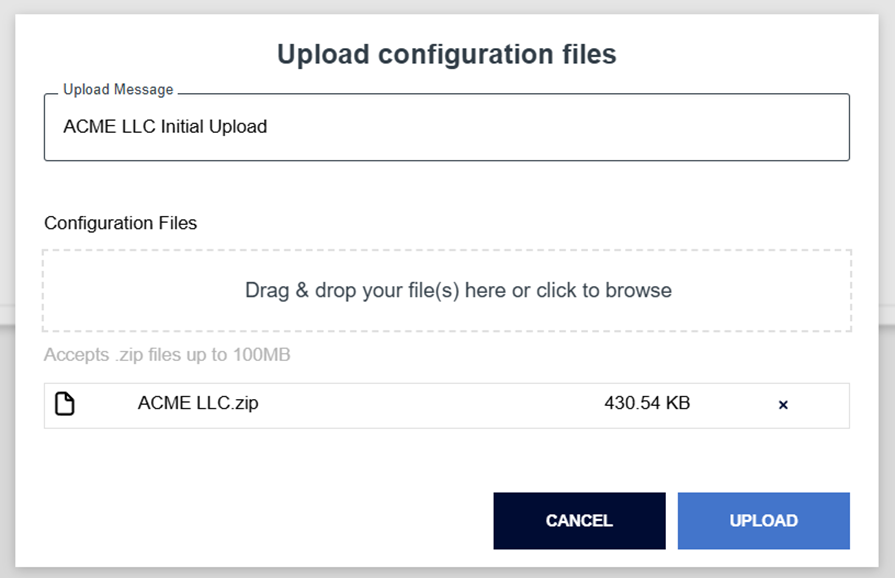
Once the upload is complete you can view a folder structure containing the configuration files.
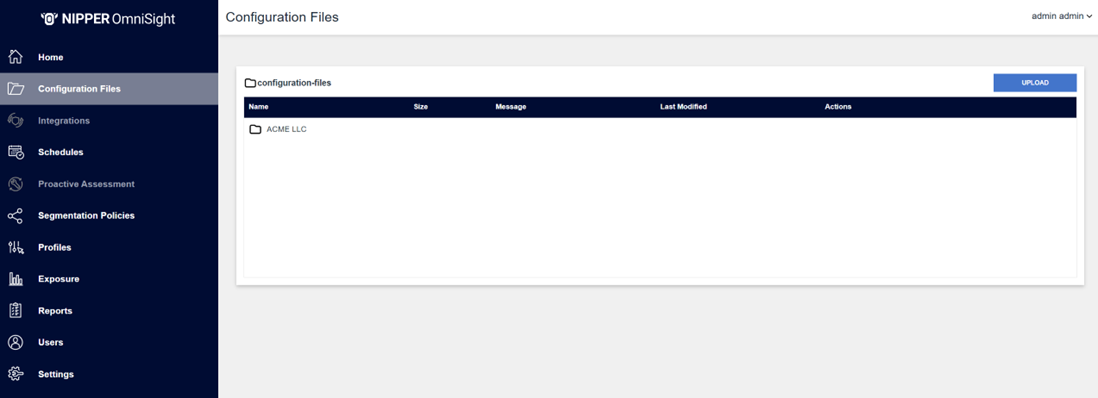
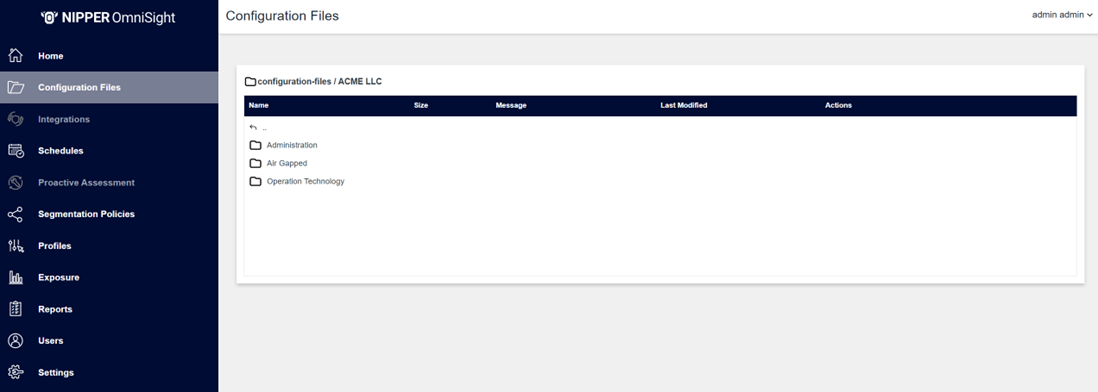
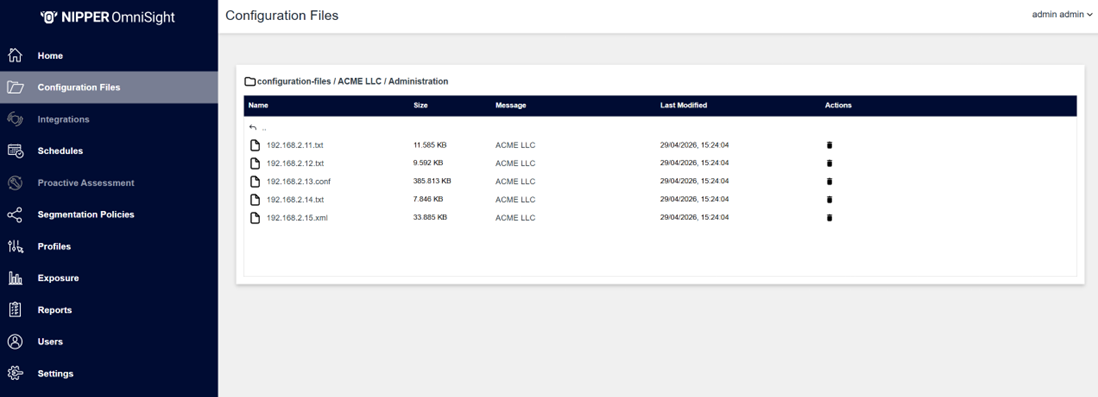
Once you have added in your configuration files, the sidebar will become active, except for Integrations and Proactive Assessment, as this functionality is not available within Standalone.
If the repository appears disconnected, this is due to it resyncing, whilst the connection status is orange no labels are returned. This is a temporary state and the files will be available after the synchronisation completes.
Deleting Configuration Files
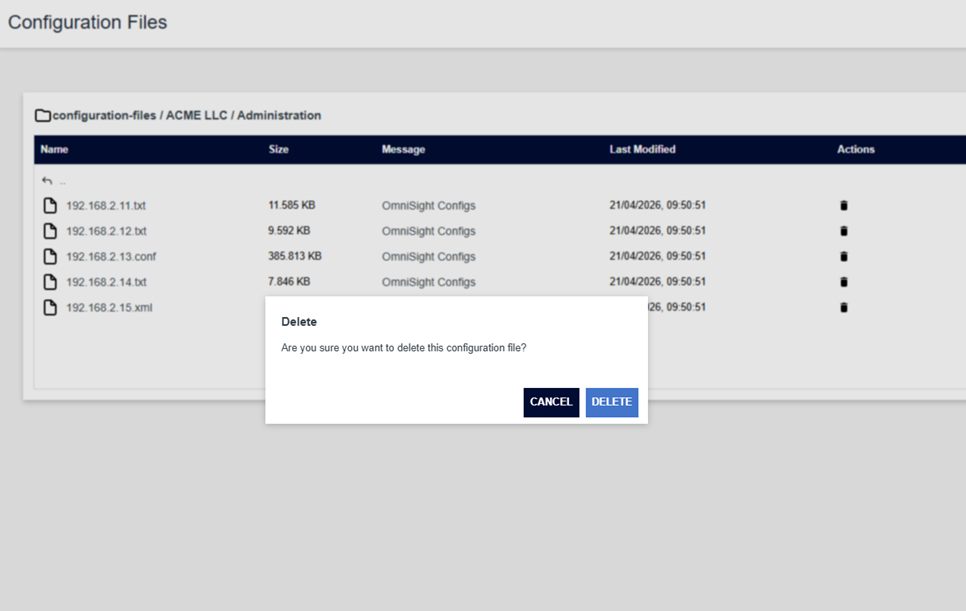
To delete a configuration file, click the Delete icon under the "Actions" column on the row for the corresponding file that is to be deleted.
Clicking this delete button will prompt a deletion confirmation dialog, clicking Delete will remove the file, whereas clicking Cancel will navigate back to the folder view.
Labels in Configuration Files
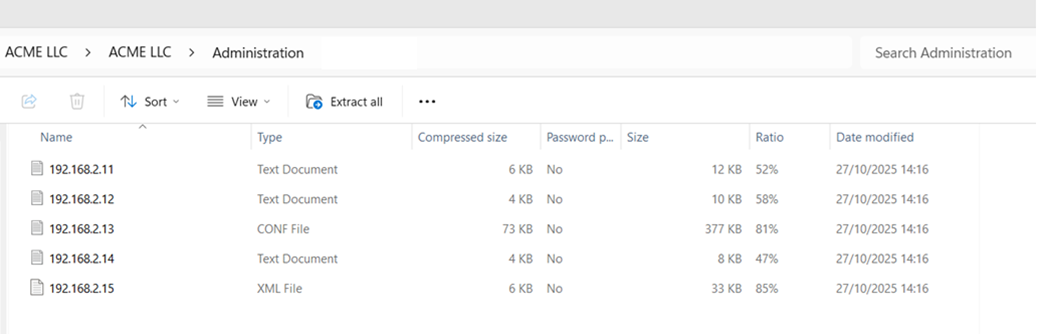
Nipper OmniSight is configured to treat the Configuration File folders as labels.
Later, when creating Schedules, when prompted to select a label, the name of each folder within Configuration Files will be the label you select.
If a file is within nested folders, then that device will have the labels of all folders in its structure. In this example, the configuration file named 192.168.2.11 has the labels of Administration and ACME LLC:
Note that label names are case-sensitive.