
Login
Upon navigation to the Nipper OmniSight URL, you will be presented with the login page.
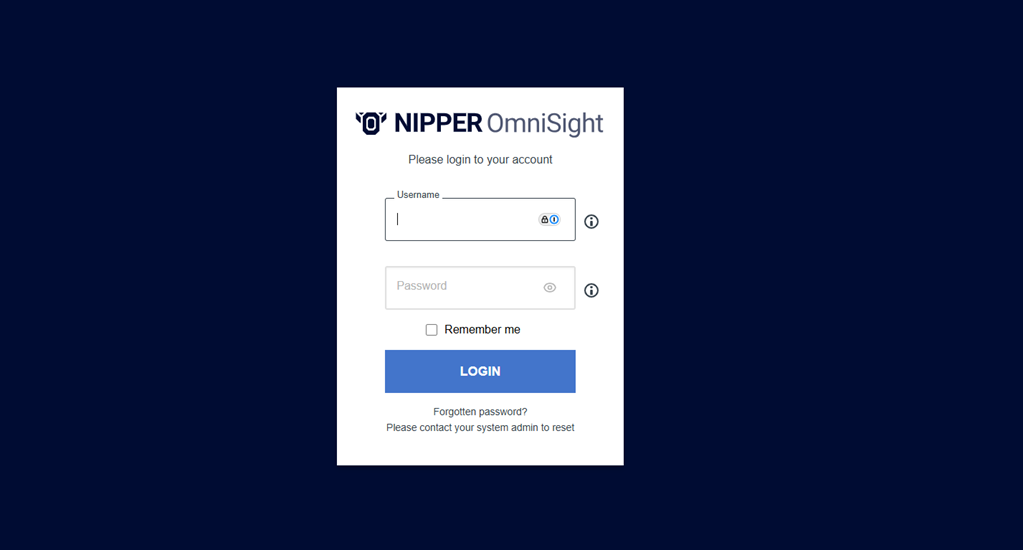
Once you have reached the login page you will be shown a login prompt, you can use the default login:
Username: admin
Password: pass
Once the first step has been completed, you will be prompted to change the password on the next screen.
Changing your Password
The Change Password screen is shown either:
- Following the initial login to the Nipper OmniSight product
- Following a password reset by an Administrator
- Following the user selecting to change their own password
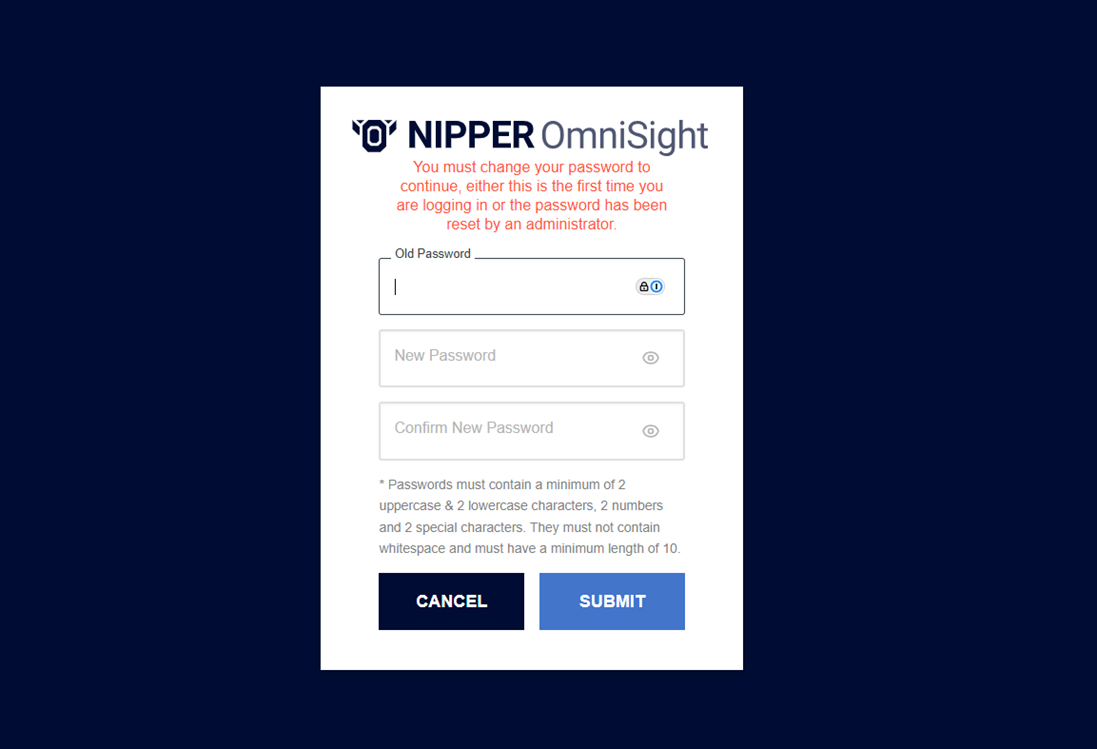
Old Password: Enter your old password here.
Clicking on the Eye icon within the password input box, will allow you to see the password entered.
New Password: Enter your new password here. Your new password must contain a minimum of 2 upper case and 2 lower case characters as well as 2 numbers and 2 special characters. No spaces should be included, and it must be a minimum of 10 characters long. Clicking on the visibility eye icon within the password input box will allow you to see the password entered.
Confirm New Password: Re-enter your newly created password here. Clicking on the Eye icon within the password input box, will allow you to see the password entered.
Once you’ve completed the screen, clicking Submit will save your new password and you will be redirected back to the login screen.
Clicking on Cancel will take you back to the previous login screen.
Two-factor Authentication (2FA)
If you have requested to enable two-factor authentication, you will need to complete a two-factor authentication (2FA) process in order to access the product
Two-factor authentication (2FA) is used by Nipper OmniSight to provide an extra layer of security when accessing the product. It requires you to have access to an authentication application in order to generate a time-sensitive authentication code.
The 2FA screen is displayed, either following the first successful login to the Nipper OmniSight product or following a successful password reset. Using your chosen authentication application, scan the QR code displayed on screen, creating a Nipper OmniSight account, then click Continue to Login to be redirected to the code input screen. By hovering over the Information icon, additional information is provided to assist with the 2FA process. Enter the code shown on your authentication application, then click Next to complete the login process.
Note: You have a limited number of attempts to successfully enter the authentication code. Following three consecutive incorrect entries, you will be redirected back to the start of the login screens. To reset your 2FA, please contact your system administrator.