
Nipper OmniSight regularly updates NVD (National Vulnerability Database) and KEV (Known Exploited Vulnerabilities) resources during each product release.
However, the Manage Resources section gives users the ability to upload their own resources, ensuring that Nipper OmniSight is using the most up-to-date vulnerability information available.
Note: Manage Resources is only available to users in the Administrators group.
Resource Types
NIST NVD (CVE) JSON Download
The National Vulnerability Database (NVD) is a U.S. government repository of data relating to vulnerability management. Provided by the National Institute of Standards and Technology (NIST), these files aggregate data from the Common Vulnerabilities and Exposures (CVE) system and include comprehensive vulnerability information such as descriptions, severity ratings (e.g., CVSS scores), affected software versions, and potential remediation steps.
CISA Known Exploited Vulnerabilities (KEV) Catalog
Known Exploited Vulnerability (KEV) files are a curated list of vulnerabilities actively exploited in the wild. Maintained by trusted organizations like the U.S. Cybersecurity and Infrastructure Security Agency (CISA), they focus on quickly highlighting risks that require immediate attention rather than providing exhaustive technical details.
CIS to MITRE ATT&CK Mappings
CIS to MITRE ATT&CK Mapping files allow users to upload mappings between CIS Controls and MITRE ATT&CK techniques. These mappings help associate security controls with relevant adversary tactics and techniques, enabling better visibility into how implemented controls support threat detection, mitigation, and defensive coverage analysis.
Adding a New Resource
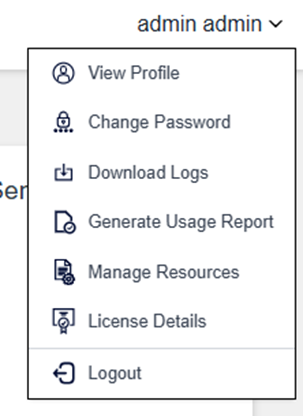
To upload a resource file, click your username in the top right corner and select Manage Resources.
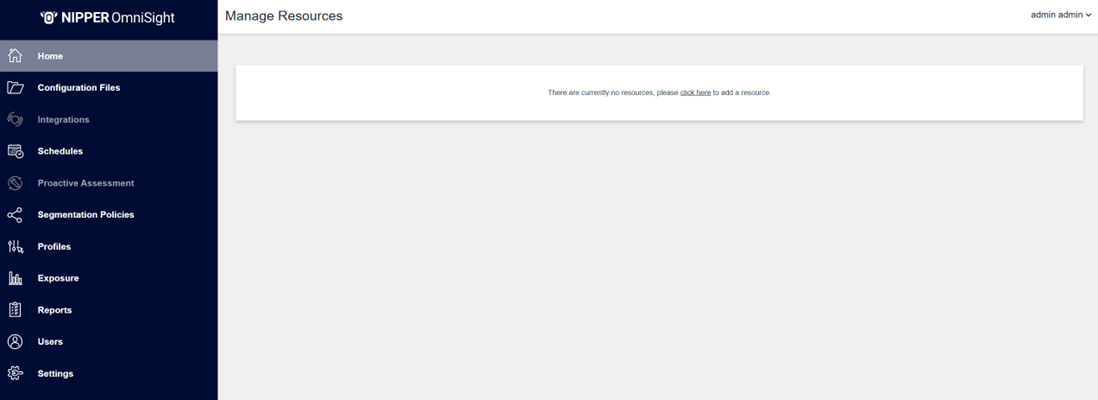
The Manage Resources page will allow you to upload a resource file into Nipper OmniSight.
The following fields should be populated:
- Name: The name of the resource.
- Version: The version of the resource.
- Type: The type of resource
- Upload File: The resource file you wish to upload.
Note: The resource file size cannot exceed 15MB.
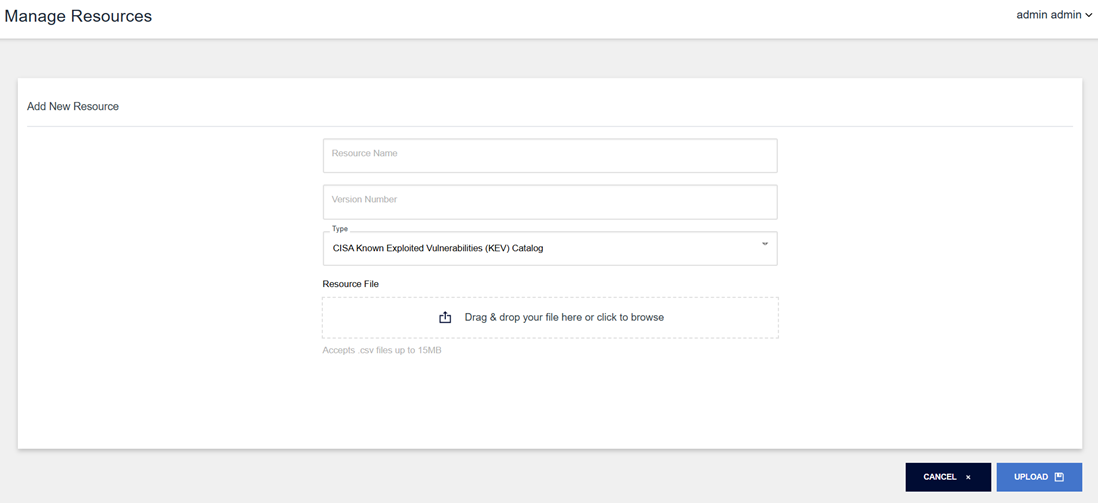
Once the fields are complete and the file has been attached, press the Save button to add the resource.
A new card will appear showing the current state of the update. It will begin in a Pending state while the upload is in progress.

If the upload is successful, the state will change to Success.

If you try to upload a resource with the same name as a previously uploaded resource, you will get an error message.

Deleting a Resource
To delete a resource, select the Delete icon on the right hand side. This will open a dialog box asking you to confirm your choice to delete. If you wish to proceed, select Delete.
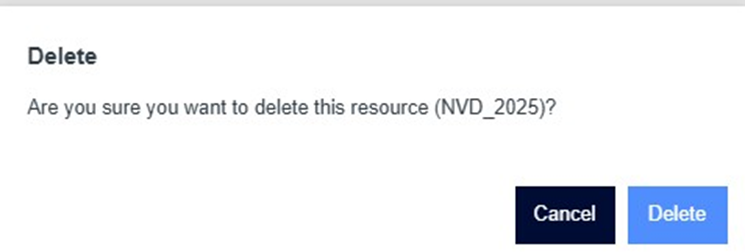
A message will pop up to confirm the resource has been successfully deleted.
