Profiles allow you to fine-tune the report output Nipper OmniSight will generate.
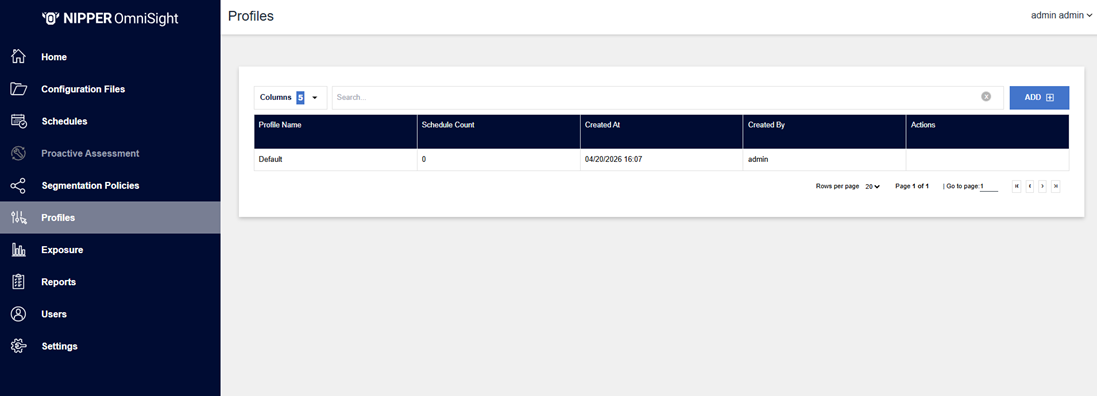
To access Profiles, you must click the “Profiles” button on the left-hand sidebar. A “Default” profile will already be listed and is automatically applied to assessments if no other profile is specified.
Creating a Profile
Clicking the “Add” button to the top right of the table will open the Create Profile page where you will be presented with an empty Profile Name field and a series of settings split between various categories. The pre-defined values are based off the Default profile.
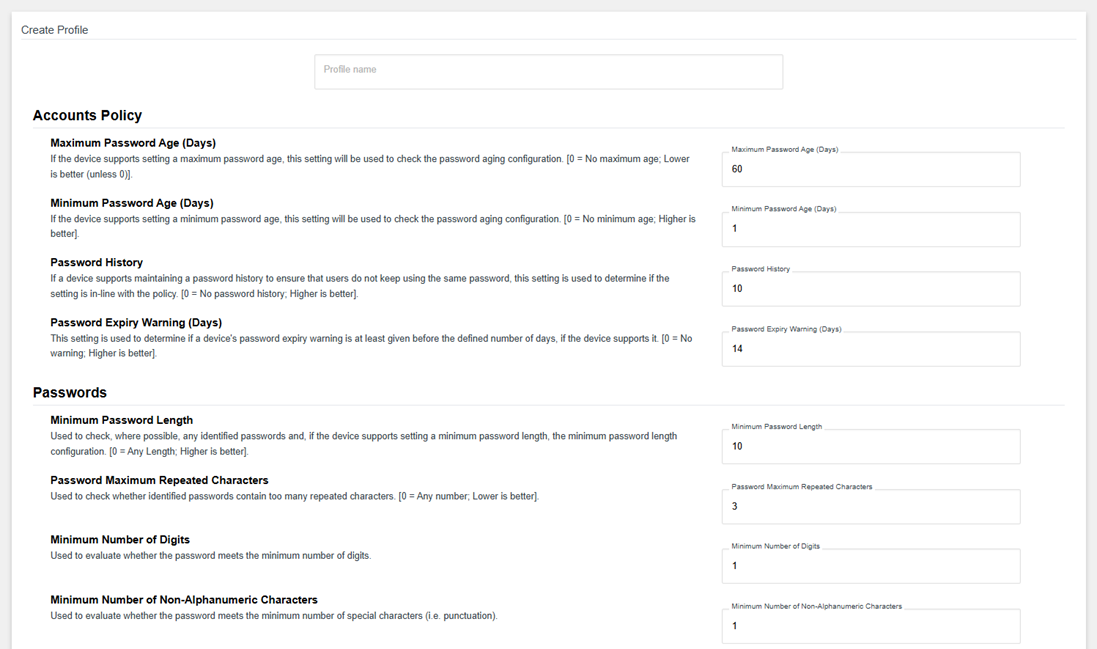
Various input fields are visible on this page:
- Numerical: Will only accept an integer number.
- Toggle: Can be activated/deactivated.
- Dropdown: When clicked a dropdown menu of options will appear.
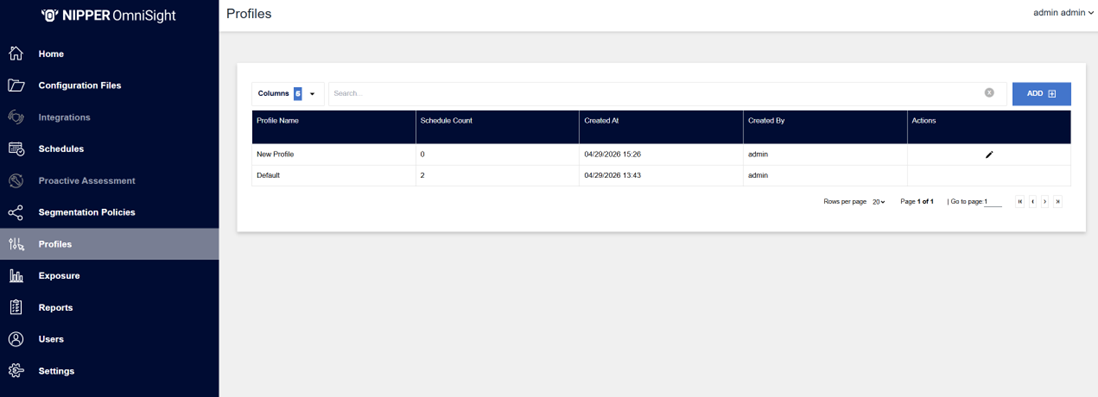
Once the required preferences have been set the Profile can be saved and added to a Schedule rule. It will now appear in the Profiles list.
Edit Profile
To edit an existing profile, navigate to the Profiles page, and click the Edit (pencil) icon under "Actions” on the row for the corresponding profile that is to be changed.
Clicking this will navigate to the Edit Profile page, where profile settings can be changed as desired.
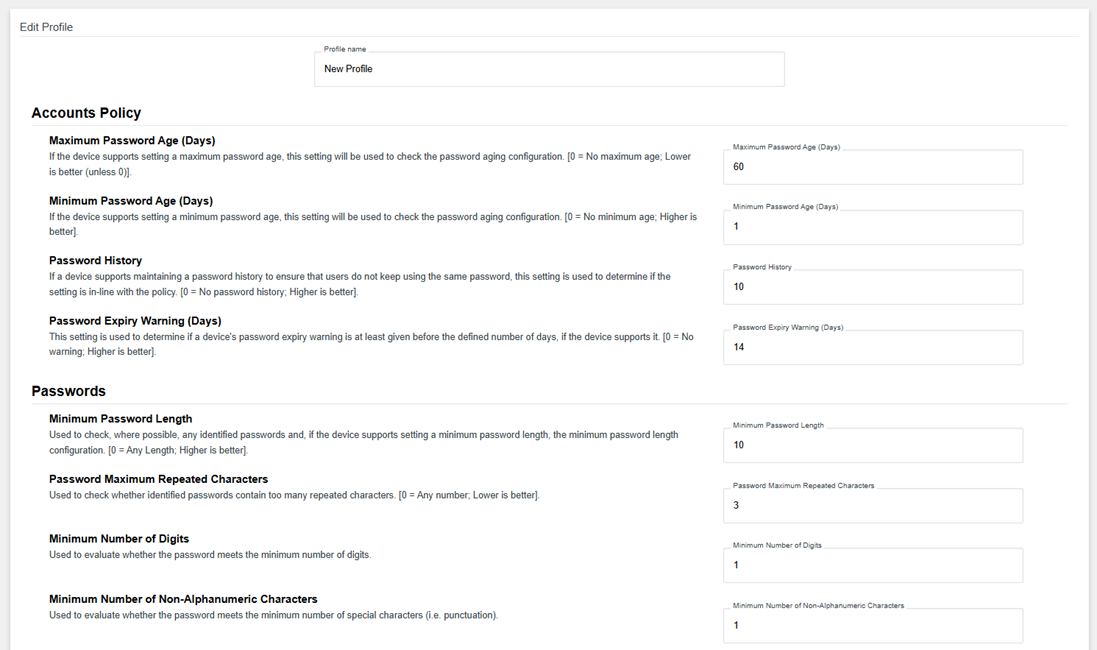
Once the edits have been made, scroll to the bottom of the page and click “Save”. You will be navigated back to the Profiles list page.
Viewing Profiles
The Profiles table has several columns that can be shown/hidden to the user or ordered by if clicking on the table column title.
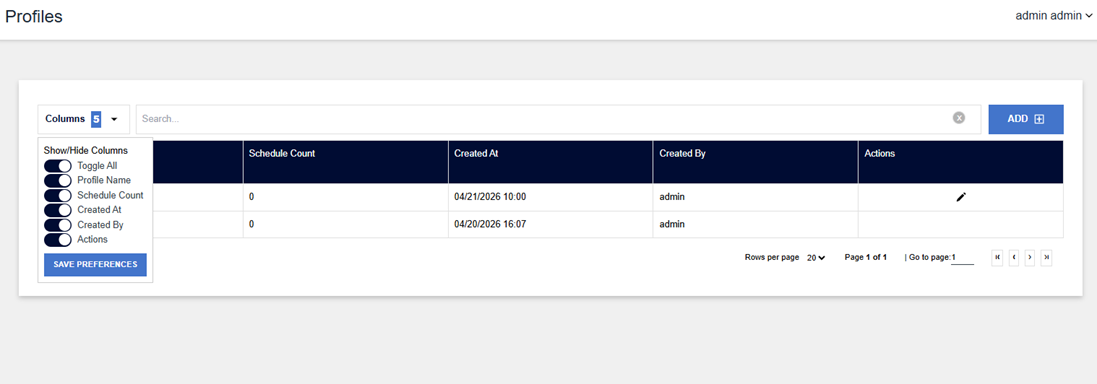
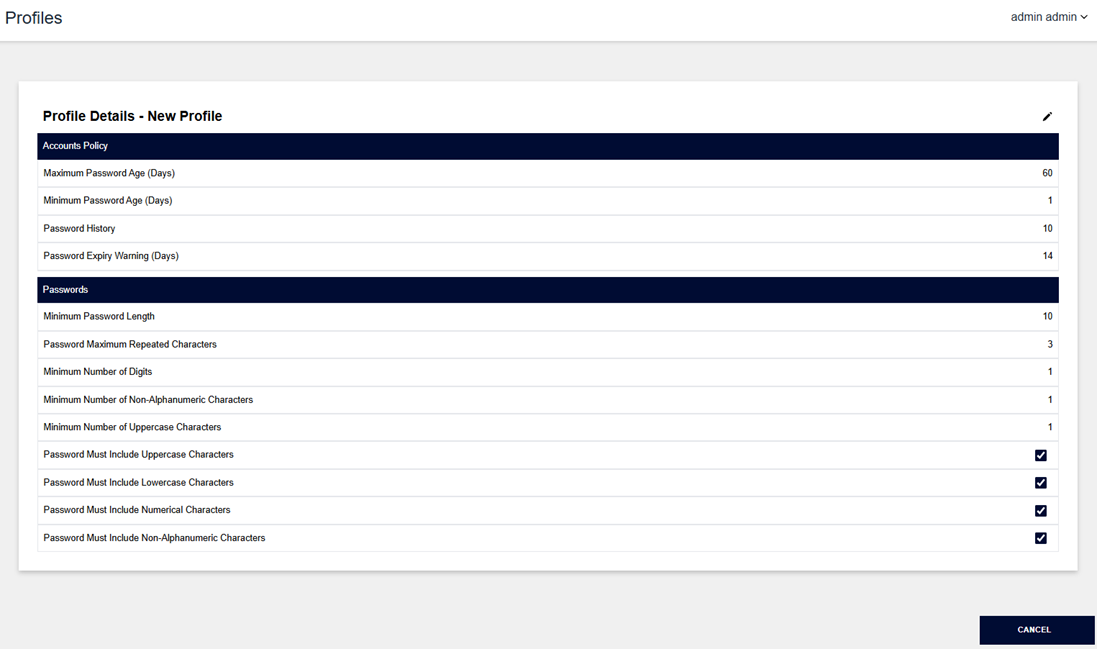
A user can also view the profiles by clicking on the profile row in the table. The profile settings cannot be changed on this page, but the user can be taken to the edit profiles page by clicking the Edit (pencil) icon in the top right corner of the View Profile page.