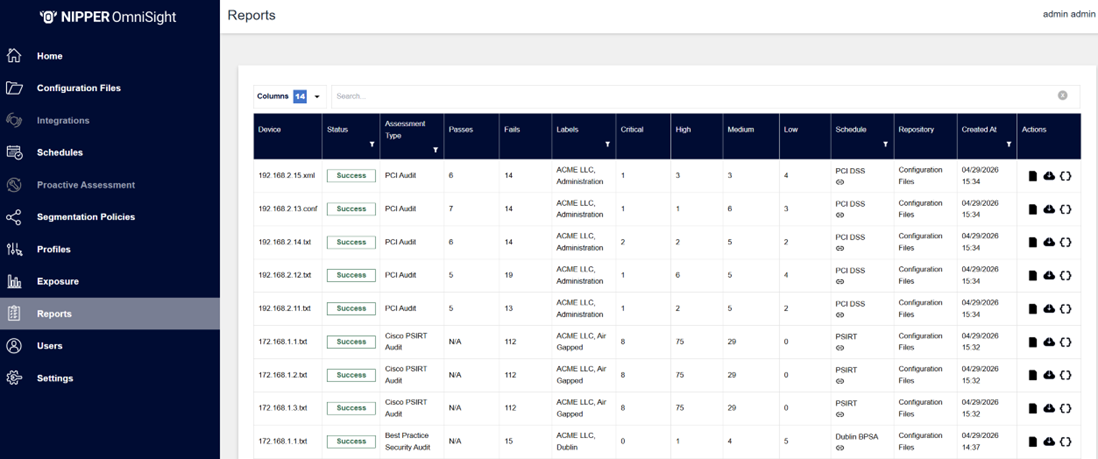
The Reports page lists all reports generated from Schedules. From here you can filter, search and view reports generated from device assessments.
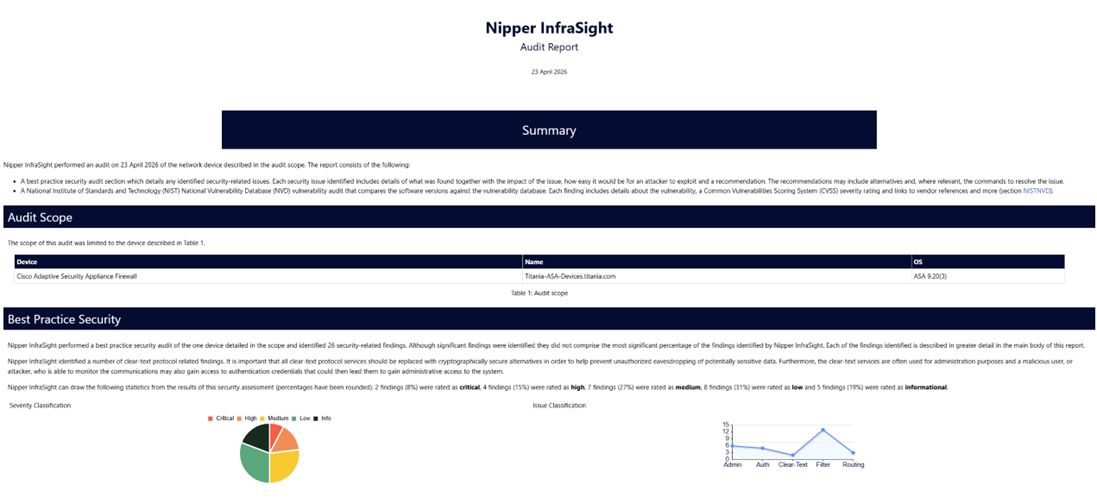
Clicking on the View Reports icon in the “Actions” column will open that device's assessment report.
Clicking on the Download Report icon in the “Actions” column will download the HTML report file
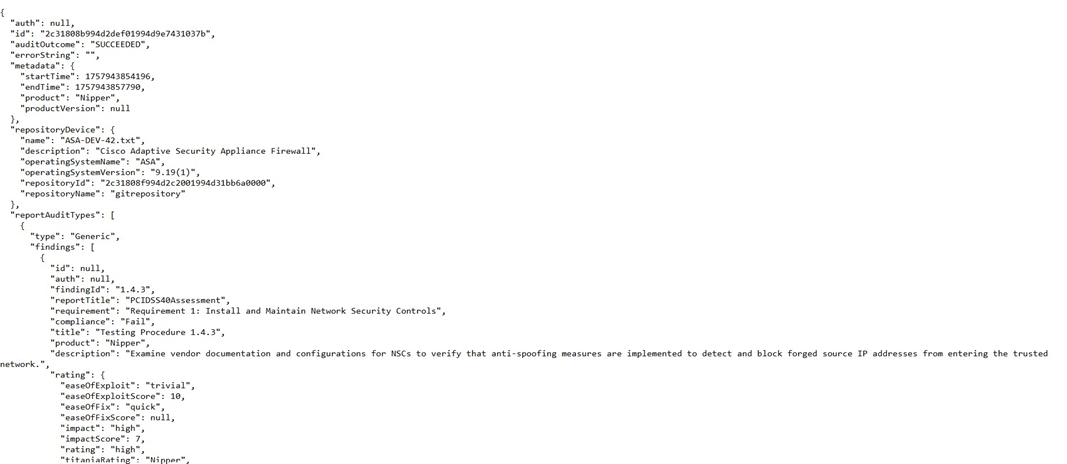
Clicking on the Download JSON icon in the “Actions” column will download the JSON report file
Note: Absence of these buttons indicates the report is not yet generated or has been removed due to a more recent version of the report being available elsewhere within the reports list.
If the assessed device is not detected, an error or feedback message will be displayed under the
'Results' column, which is hidden by default. This column can be toggled using the 'Toggle Column' option on the Report List page. Additionally, users can hover over the status to view the full message in a tooltip

The HTML report will display the complete findings from the assessment performed on the device. Following the top section with the assessment summary is the main body of the report that lists the findings and ways on fixing the issue.
The JSON report contains the same findings information in a JSON structure.