
Scheduling allows fine-grained control over when a set of one or more pre-defined assessments are run, and with what frequency they should occur.
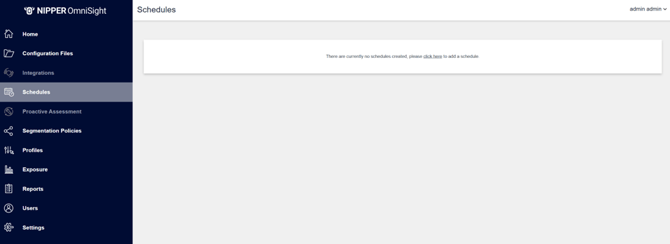
To access the Schedules screen, you can either click on the Schedules link in the sidebar menu, and navigate to the Create Schedules screen by clicking on the click here link:
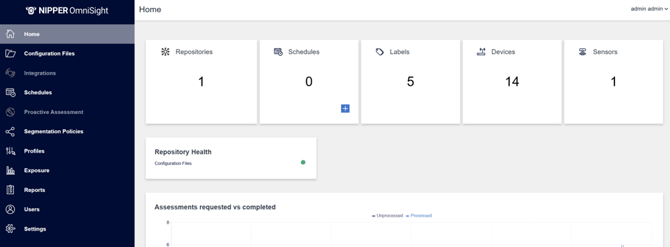
or click on the blue Add icon in the Schedules widget on the dashboard, which will take you straight to the Create Schedules screen.
Creating a Schedule
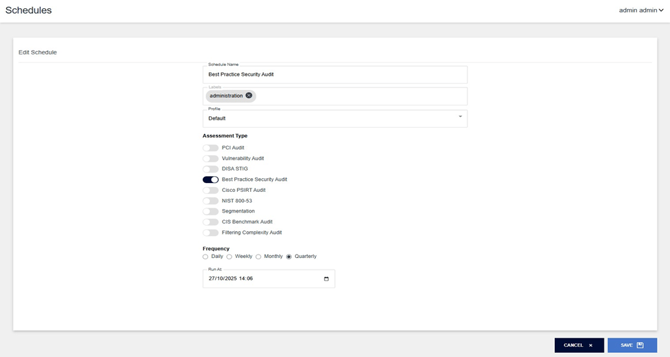
Once on the Create Schedules page you will be presented with a series of input fields.
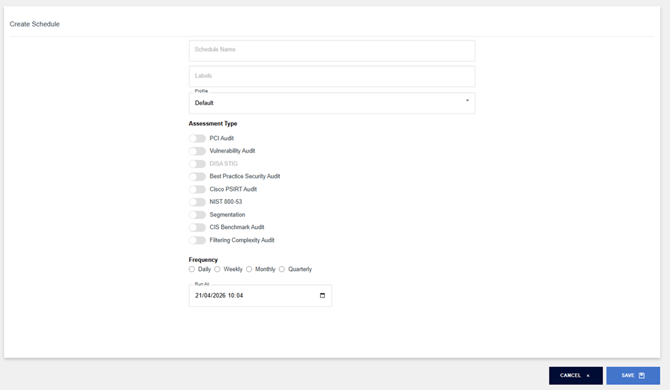
Some of these assessment and schedule options will only be visible if they have been enabled for your specific license. If you believe you should have access to certain options but don't see them, please contact Titania Support for assistance.
- Schedule Name (Text Box): An identifier for the Assessment Schedule to be created.
- Labels (Text Box): The folder name within Configuration Files where the configs you would like to assess are stored. This will assess all devices with the associated label, this is a logical AND operation not a logical OR operation. Note: Autocomplete of known labels will start once you type the first letter.
- Profile: Either the default profile or a custom one you have created
- Assessment Type: Each standard that can be assessed against has an ON/OFF radio switch to select which types apply to this schedule. The Assessment Types that can be selected are dependent upon your licensed options.
- Frequency: A set of mutually exclusive radio buttons to select the interval which governs how often the Assessment Schedule should run. The exact frequency options available is dependent upon your licensed options.
- Run At: A date/time selector to control the start date and time of this Assessment Schedule.
Segmentation assessments are dependent upon a Segment having been created with matching labels, if you wish to select Segmentation Assessment, please create a Segment in the Segmentation Policies screen first.
Once the form has been satisfactorily completed, the Assessment Schedule can be finalized and created with the Save button at the bottom right of the page. Alternatively, the Cancel button at the bottom of the page can be used to navigate back to the Schedules page.
Upon successfully saving, the newly created Assessment Schedule should be visible within the Schedules table.
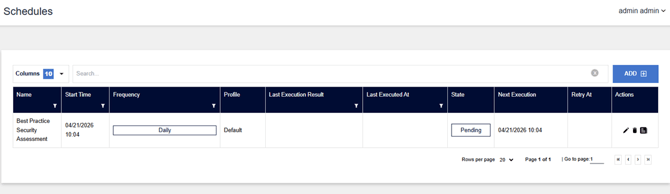
You can create further Schedules by clicking on the Add button.
Viewing Schedule Reports
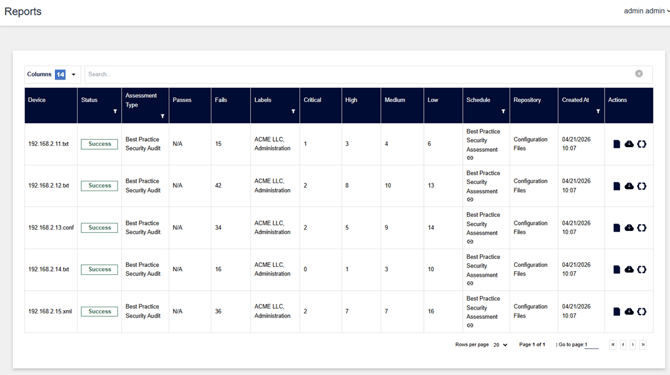
To view the reports generated from a schedule, you can click on the View Reports icon in the “Actions” column on the row for the schedule you would like to view. You can also click on the Report option in the side bar. This takes you to the Reports screen where the view will be pre-filtered to only show the reports for that schedule.
Editing an existing Schedule
To edit an existing schedule, navigate to the Schedules table, and click the Edit (pencil) icon under "Actions” on the row for the corresponding assessment that is to be changed.
Clicking this will navigate to the Edit Schedule page, where settings for the Schedule can be changed as desired.
Deleting an existing Schedule
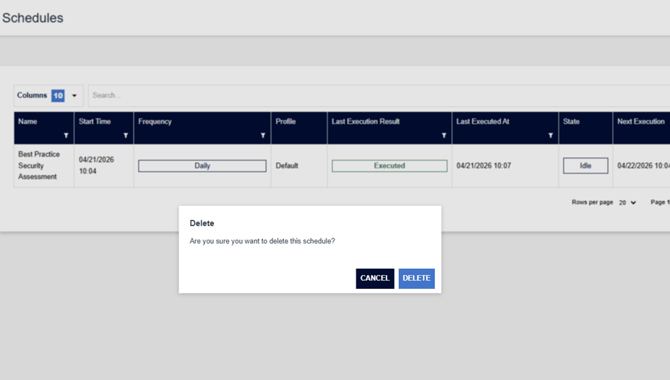
To delete an existing schedule, navigate to the Schedules table, and click the Delete icon under "Actions” on the row for the corresponding assessment that is to be deleted.
Clicking this delete button will prompt a deletion confirmation dialog, clicking Delete will remove the schedule, whereas clicking Cancel will navigate back to the Schedule table.
Schedule Details
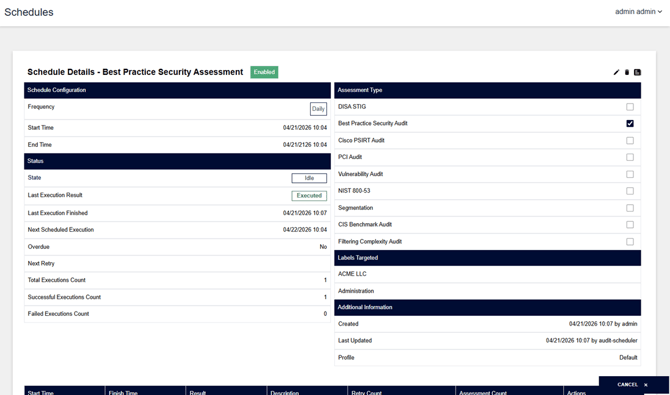
To view the details of a schedule, click anywhere on the row in the table for the schedule you wish to view. From here you can view the settings applied to that schedule, the status of the schedule and navigate to the Reports screen. You can also edit and delete a schedule from here and see the different executions of the schedule at the bottom table and view reports specific to the schedule runs.
Viewing the Schedules table
The columns on display as default can be amended by simply clicking on the Columns drop down menu and selecting or deselecting the columns from the list.
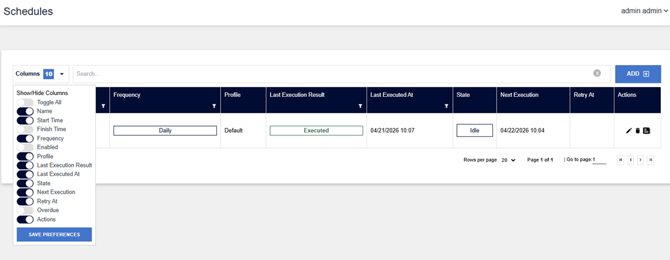
You can also order the table based on the data in any of the columns by clicking on the column title.