
To access the User Management section of Nipper OmniSight, click on the Users link in the sidebar menu.
Here you will be presented with a table containing each of the configured users on the system.
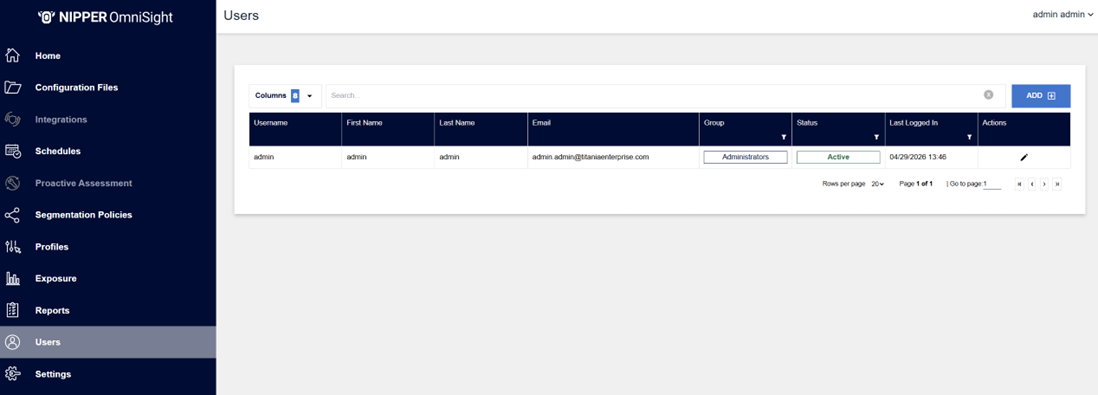
Note: User Management is only available to users in the Administrators group.
Adding a new user
To add a new user to the system, click on the Add button.
Once on the Add User page you will be presented with a series of input fields.
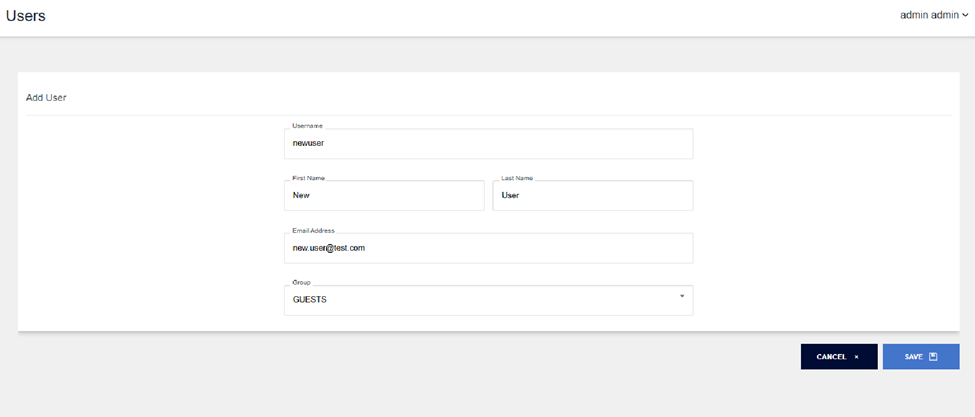
You have the option to choose which user group this new user belongs to, the chosen group will determine the privileges the user has.
A user in the Guest group:
- May change their own password
- Has read-only access to Configuration Files, Schedules, Segmentation Polices, Profiles, Exposure and Reports
A user in the Users group:
- Has the same permissions as a "Guest" user, in addition they have the following permissions
- Has write access to Schedules, Segmentation Polices and Profiles
- Can configure instant and scheduled assessments
A user in the Administrators group:
- Has the same permissions as a "Users" user, in addition they have the following permissions.
- Has write access to Configuration Files, Schedules, Segmentation Polices, Profiles and Reports
- Has the ability to view and manage other users' information.
- Has the ability to view and manage settings.
A user in the NOC group:
- Has write access to Configuration Files only
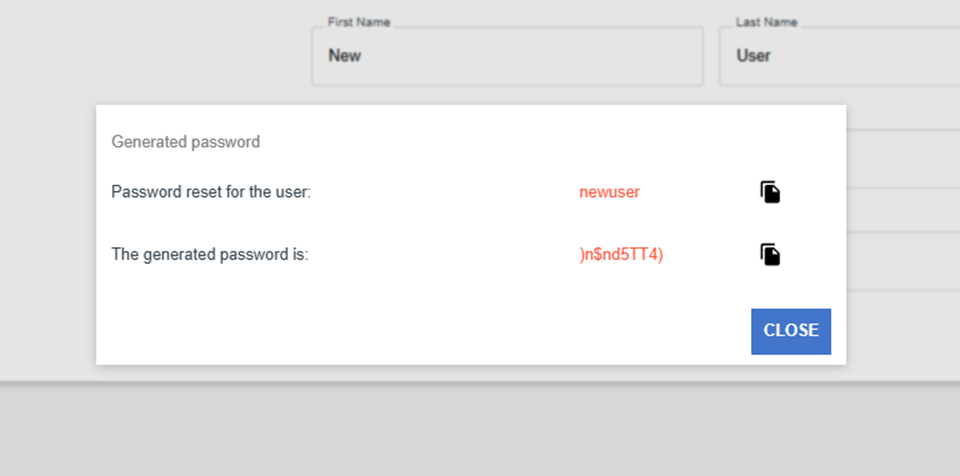
Once all fields have been completed, click Save. A window will be displayed showing a generated password for that user. You can copy the username and password to your clipboard by clicking on the Clipboard icons to the right of the fields.
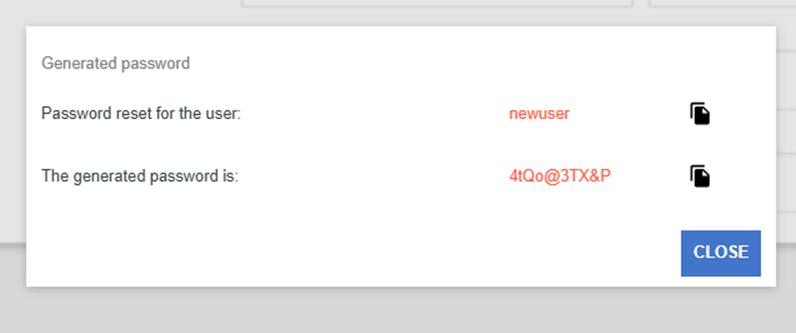
Note: when a new user logs into the system for the first time they will be required to change their password.
Editing an existing user
To edit an existing user, navigate to the Users table, and click the Edit (pencil) icon under "Actions" on the row for the corresponding User that s to be changed.
Here you can change the name or email of the user, the group the user belongs to, or allow the user to reset their password or generate a new two-factor authentication code.
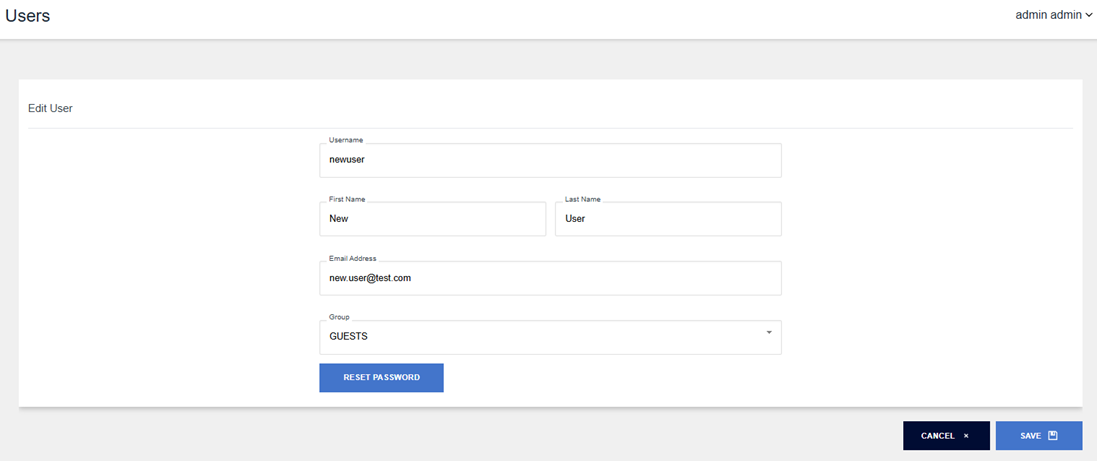
If you reset a user’s password, you will see a window with a generated password. Here you can copy the username and password to your clipboard by clicking on the Clipboard icons to the right of the fields.
The user will then be prompted to change their password when they next login.
Deleting an existing user
To delete a user from the system, click the Delete icon under the "Actions" column on the row for the corresponding User that is to be deleted.
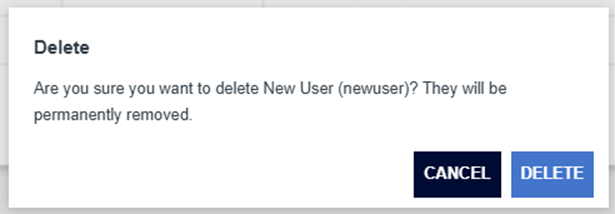
Clicking this delete button will prompt a deletion confirmation dialog, clicking Delete will remove the user, whereas clicking Cancel will navigate back to the Users table.
Note: Once a user has been deleted, you will no longer be able to add another user with the same username.