
The Nipper OmniSight home screen provides a dashboard overview of key components and assessment information. By default, all widgets shown on the page will automatically update every 10 seconds.
The top widgets show the total number of Schedules, Repositories, Labels, Devices and Sensors set up within Nipper OmniSight. From here, you can navigate to the Add Repositories or Create Schedules pages by clicking on the plus icon within the widget.

The Repository Health Widget displays all the synced repositories along with their current health status. A green indicator signifies a healthy connection, while a red indicator denotes an unhealthy connection. Users can hover over the status indicator to view more details.
The Schedule Health Widget displays the last run schedule, including its name and execution time, as well as the next scheduled run, if applicable.

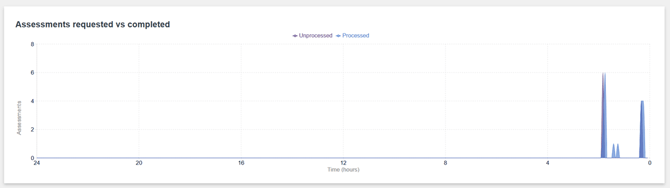
The graph displays the number of assessments requested and the number of assessments completed within a 24 hour time period. The 24 hour graph is split into 5 minute sections.
The report success vs fail bar graph displays the number of successful and failed assessments completed within 24 hours, 1 month, and 1 quarter. The green bar represents the total number of successful assessments, while the red bar represents the total number of failed assessments. Users can click on each bar to open the reports list page, pre-filtered based on the selected time interval and status.
Profile Dropdown
From any page with Nipper OmniSight, if you select the dropdown against the username in the top right of the screen, you will see a number of Profile options.
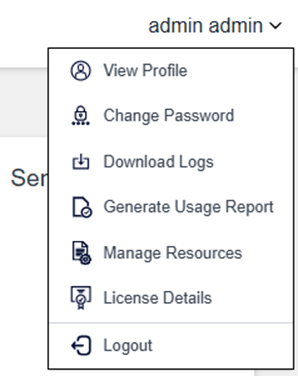
- View Profile: Clicking on View Profile from the Profile dropdown menu, takes you to your User Profile when you can view your name, email address and the group you belong to.
- Change Password: You can select Change Password from the Profile dropdown menu, this will navigate you to the Change Password screen.
- Download Logs: If you experience issues, such as being unable to create a schedule, and are getting an error back, our Customer Support team may request you download and share the log file to assist with debugging the issue. To do so, select Download Logs from the Profile dropdown menu and save the downloaded file.
- Generate Usage Report: Selecting Generate usage report from the Profile dropdown menu will allow you to download and save a JSON report that will show the following information for the last 12 months:
- Total number of distinct devices assessed
- Broken down per month:
- Number of distinct devices assessed
- Total Assessments Performed
- Schedule count
- Report count per assessment type
- Report count per device type
- Manage Resources: Clicking on Manage Resource from the Profile dropdown menu, takes you to the Add new resource page, you can upload a resource file into Nipper OmniSight using this feature. Please refer to Manage Resources for more details.
- License Details: The License Details page lets you see which features are included in your license, along with its current status, activation and expiry dates, and a visual overview of how much of the license is being used.
Note: Usage report and Manage Resources are only available to users in the Administrators group.
Download Logs is only available to users in the Administrators group and User group.