
Steps to configure Proxy:
-
Open Nipper
-
Navigate to Tools → Settings
-
Change the view from Standard to Advanced (bottom of the window)
-
Select the Internet tab
-
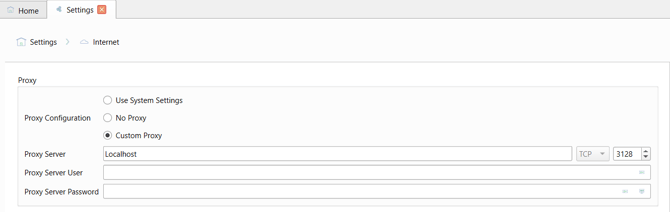
Under Proxy Configuration, choose one of the following:
-
Use System Settings
→ Uses the proxy configured on the host machine -
No Proxy
→ Direct internet connection without proxy -
Custom Proxy
→ Manually define proxy details
-
-
If selecting Custom Proxy, enter:
-
Proxy Server (e.g. IP address or hostname)
-
Port (e.g. 8080)
-
Proxy Server User (if your proxy server requires authentication, enter the username to access the proxy internet server)
-
Proxy Server Password (if your proxy server requires authentication, enter the user's password to access the proxy internet server)
-
Best Practices
-
Prefer "Use System Settings" where possible to maintain consistency with your organisation’s network configuration.
-
Use Custom Proxy only when specific proxy details differ from system settings.
-
Ensure the proxy allows outbound access to required endpoints.
-
Verify proxy details to avoid connectivity issues.