
Contents
There are 8 main sections that will form your Check Point R80 configuration file following this guide. It's recommended to follow the guide from start to finish, however for returning and advanced users you can use the links below to jump to specific sections of the guide for ease of viewing:
Throughout this guide you will be taken through the steps to generate a manual configuration Json file from your Check Point R80 device. As well as this guide, there is also a Python script and an executable available to automate this process. It is highly recommended that one of these options is used to avoid human error. The location of the automated scripts and detailed steps is available here.
The following pages provide an overview to running web requests and populating your configuration file with the response from your requests – to jump straight to the configuration retrieval steps, go here.
Running Requests
HTTP and HTTPS requests can be run in many ways – we recommend using Postman, a free tool for making requests to RESTAPI’s.
The following guide will take you through the steps for retrieving your Check Point R80 manual configuration using Postman by running various commands and populating our Json configuration schema.
All commands throughout this guide will use the address of your Check Point R80 device with /web_api appended to this to access certain parts of the Check Point Web API, e.g.
https://192.168.0.1:443/web_api
Where https:// is the connection method, 192.168.0.1 is the address of your Check Point R80 device and :443 is the port to connect to.
As well as specifying the address and API to connect to, you will also be required to specify headers and a body for the request.
Request Headers
The first header that needs to be specified will remain the same throughout all requests in this guide – this is the ‘Content-Type’ header, which should always be set to ‘application/json’. This tells the request that the response we want to receive should be in Json format.
The second header that needs to be specified acts as a session authenticator to ensure you can continue to send successful requests to your Check Point R80 device – this is the “X-chkp-sid” header. Once the login request is sent, you will receive a response containing a “sid” key and value – copy this value. Any requests sent after this should add the header “X-chkp-sid” with the value previously copied.
Request Body
The request body will vary between requests being sent but will always be in Json format. If you are completing this guide using Postman, a request will only be successfully sent if the body contains valid Json.
Object request limit body
Several requests that will be made throughout this guide have to specify a limit of objects returned by the device, this cannot exceed 500. When this is the case, it is important that each object is retrieved for Nipper to report accurately on your device. Any request body that contains the key “limit” is considered an object request limit body.
Code Snippet 1: Object request limit body example
{
   "offset": 0,
   "limit": 500,
   "details-level": "standard"
}
When running a request with an object request limit body, the response will always contain information about how many objects have been returned, and how many there are in total.
In the following example, we have sent a request with a limit of 500 objects, but there are 650 objects that could have been returned, as denoted by “total”. In this case we need to copy the response from this request to a new file and run another request to retrieve the complete configuration.
Code Snippet 2: Example response
  ],
  "from": 1,
  "to": 500,
  "total": 650
}
Once the response from the original command has been saved to another file, go into Postman and edit the body.
This will involve changing the “offset” to the last object that was received – as the limit will always be set to 500, the offset should always be “500” when running a second command.
Code Snippet 3: Object request limit body second request
{
    "offset": 500,
    "limit": 500,
    "details-level": "standard"
}
Once the body has been updated, the request can be sent again. This will now retrieve all objects from the 500th. In our example, we would not need to send any more requests for this command.
We have now received all 650 possible objects from the device configuration section we have been sending requests to, so do not need to send any more requests for this.
If after sending the second request, all the objects have not been retrieved, repeat the previous steps to save the response to a new file and keep sending requests, editing the body each time until all objects are received.
Combining saved responses
Once all the objects have been received for a request, the files that have each response in need to be combined.
Any request that has an object request limit body will have an “objects” array in its response.
Code Snippet 5: Second objects array
{
  "objects": [
        {
        "object": "500"
    },
    {
        "object": "501"
    },
    {
        "object": "502"
    }
  ],
  "from": 500,
  "to": 503,
  "total": 503
}
For these arrays to be combined, all the objects need to be copied into one of the arrays from the relevant response. We recommend using the first response as this will usually contain the most objects already.
Copy the contents of the “objects” array into the first response saved, making sure there is a comma separating each new object added. The “from”, “to” and “total” keys do not need to be updated. For information on where to put this array in your configuration file, see here.
Code Snippet 6: Combined arrays
    {
        "object": "498"
    },
    {
        "object": "499"
    },
    {
        "object": "500"
    },
    {
        "object": "501"
    },
    {
        "object": "502"
    }
  ],
  "from": 1,
  "to": 500,
  "total": 503
}
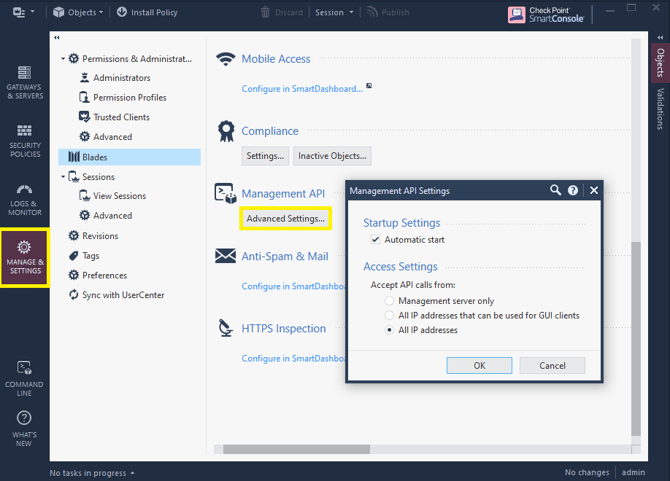
Enabling Check Point Management API
In order to send API request to your Check Point R80 device, it is necessary to enable the management API – this can be done through SmartConsole following the instructions below.
Postman Example
Creating a new collection
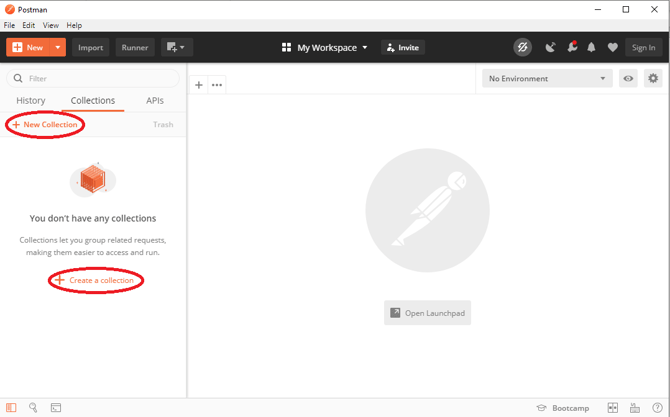
In Postman, groups of requests are stored in collections. Create a new collection to store all your requests related to retrieving your configuration from your Check Point R80 device.
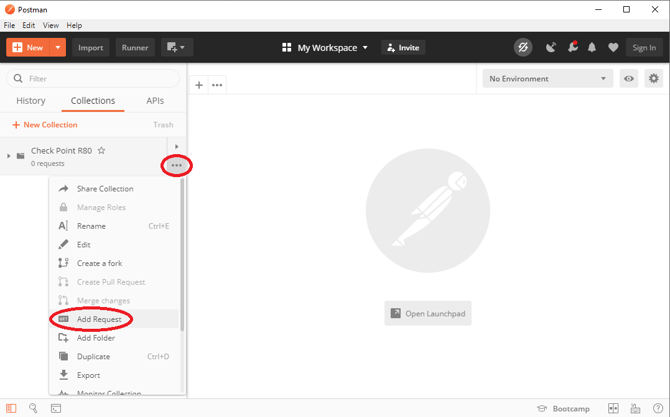
Once you have created your new collection, click the three dots, and go down to ‘Add Request’. This will prompt you with a menu allowing you to name the request – keep this name related to the request you are about to send.
Headers – the headers to attach to the request
Body – the body of the request
Type of request
Button to send the request once the URL, headers and body are populated
Address of Check Point R80 device to connect to
Highlighted are the key areas that will need to be used when following this guide.
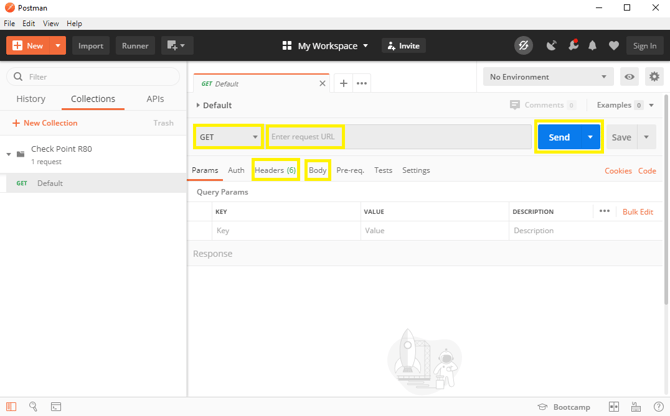
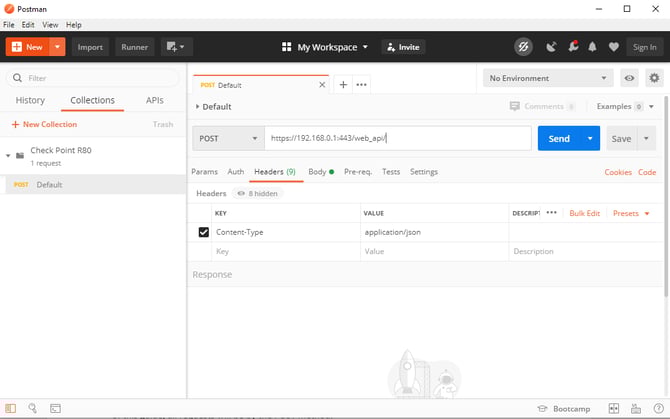
As a default, all requests throughout this guide will be populated with these details. The request type is POST, the URL is the IP address and port of the Check Point R80 device to connect, with /web_api appended. The Content-Type header is added with the value application/json and the body is set to raw, Json.
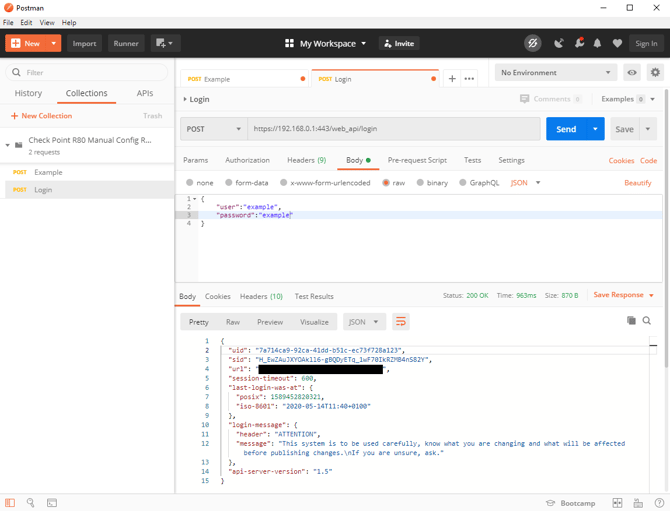
Here is a look at what an example response from a request may look like once your request has received a response - in this case, this is the login request.
Each request instruction will detail steps to populate the provided Json schema with this Json repsponse
Populating your configuration file
Schema
In order to populate your configuration file with the response from each request you will need to copy data into the Json file schema provided.
For most requests, a new Json object will need to be added to this array (ensuring there is a comma between each object). The example above shows two empty objects in the configuration file.
There are three areas that need to be populated each time a new object is added – the “command”, with the area of the API the request is being sent to (this will be explained in each request instruction). For instance, a POST request to https://192.168.0.1:443/web_api/example-command has a command of “example-command” and this is the value that will populate the “command”
The “body” object is populated from the return of the response. Responses will be returned in a Json object from Postman, e.g.
Only the actual content of the object should be copied into the “body” object of your configuration file, the leading and trailing curly braces should not be copied with this. With this example response, only the following should be copied
Code Snippet 9: Example Json body once copied
"key": "value",
"key2": "value"
Each object has a unique “titania-command-id”. This is used internally in Nipper and is very important to populate correctly – instructions for this will be detailed with each request instruction.
Code Snippet 10: Completed example
[
    {
        "request-response": [
            {
                "request": {
                    "command": "example-command"
                },
                "response": {
                    "body": {
                        "key": "value",
                "key2": "value"
                    }
                }
            }
        ],
        "titania-command-id": "example command"
    }
]
Following through the above examples should produce a configuration file.
Multiple Requests
Some sections of the configuration file will require multiple commands to be run in order to gather all the data needed for a given section. When this is the case, a new object should be added to the “request-response” array like so.