Adding a Cisco Meraki Remote Device
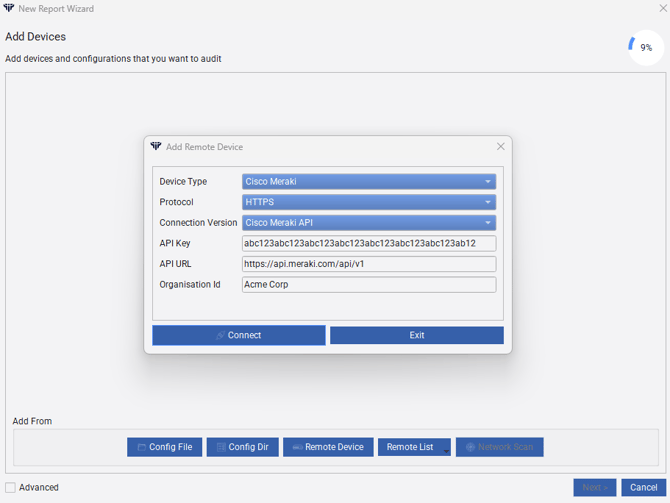
To add a Meraki-managed device to a report use the New Report workflow and then click to add a new Remote Device. The required steps in the add remote device dialog are:
-
Set Device Type to "Cisco Meraki" from the device type dropdown.
-
Enter the API Key and Organization ID into the corresponding fields, then save the remote device.
-
Run the report. Nipper will use the provided API Key and Organization ID to query the Meraki Dashboard and collect the device configuration and related information. Please note that this process may take some time and Nipper allows for you to customise your rate limit in the settings limiting the number of queries that be made within a set period of time.
Generating a Meraki API Key
An API Key is required so Nipper can access the Meraki Dashboard on your behalf. Generate one in the Meraki Dashboard as follows:
-
Log in to the Meraki Dashboard with an administrative account.
-
Navigate to Organization > API & Webhooks.
-
Under the API key section click Generate new API key (or copy an existing key if available).
-
Copy the API key and paste it into the API Key field in the New Report > Remote Device dialog in Nipper.
Security note: Treat API keys as sensitive credentials. Do not share them, store them in plaintext in public locations, or commit them to source control. Use an account with the minimum privileges required for your tasks.
Locating the Organization ID
The Organization ID tells the Meraki API which organization to query. You can find it while logged into the Meraki Dashboard:
-
Log in to the Meraki Dashboard.
-
Scroll to the bottom of the Dashboard page — the Organization ID is displayed there. Copy that ID and paste it into the Organization ID field in Nipper's Remote Device dialog.
Testing and Troubleshooting
-
If Nipper cannot reach the Meraki API, verify network connectivity and that the API key is valid and has not been revoked.
-
Ensure the API key belongs to an account that has access to the target organization.
-
Check for rate limiting or API errors returned by Meraki in the logs; adjust the request rate if necessary.