
Please follow the steps to manually set device detection when Nipper InfraSight fails to automatically detect your device.
- Firstly, review the Titania device guides for your device to confirm the configuration has been extracted correctly https://docs.titania.com/device-guides
- Once you are happy the configuration has been extracted following Titania advice you can manually select the correct device if it still fails to be recognised automatically
- When a configuration file has been selected in the New Report Wizard, and the response states, 'Failed to detect device', this can be manually set.
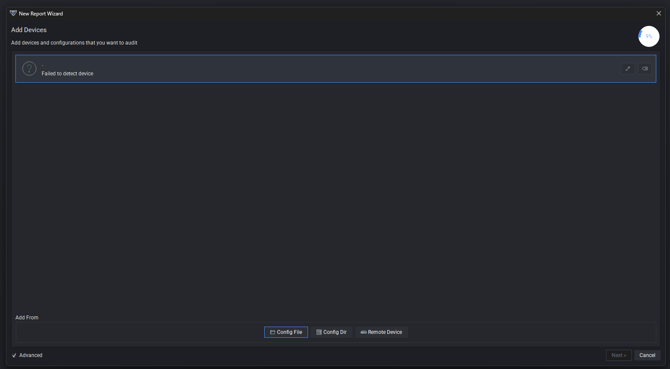
- Select the pencil (edit) icon to the right of the device screen.
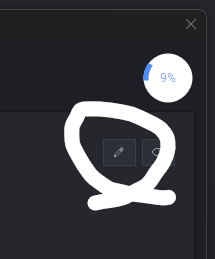
- Clicking the pencil (edit) icon enables the device dropdown selection .
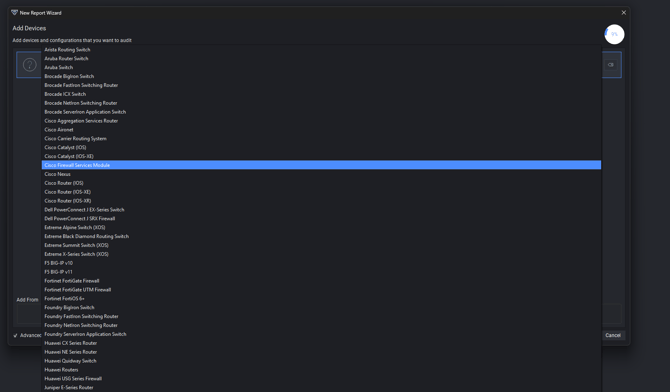
- You can now proceed to run your required assessments as normal.
NOTE: The automated device recognition looks for the presence of the specific strings in the parsed configuration file. In the example below we look at the strings for SonicWALL Pro (Extended) device recognition.
SonicWALL Pro (Extended) looks for the presence of the following strings in the parsed configuration file.
firewallName
policyAction_
shortProdName P
shortProdName N
On a Microsoft Windows installation you can find these terms in the Resources directory under the Nipper installation path. In the relevant device sub-directory they are defined in the associated device .xdet file.