
For example, an audit may include checks to determine that only hosts on the management network are able to connect to administrative services. Automated auditing would not typically know which subnet(s) were the management network so cannot automate those checks (unless the audit tool makes assumptions - usually leading to false findings). Nipper InfraSight does not make assumptions, if a check requires specific knowledge of the system/site, Nipper InfraSight will either ask the auditor for additional information or mark the check as requiring further investigation.
The Audit Sites feature, when enabled, saves the answers you give for an audit site. This means that you only need answer the site-related questions once, then Nipper InfraSight can fully automate what would have been a manual check.
Audit Sites feature enables you to quickly create, swap between Audit Sites and share them with your colleagues. This guide will show you how to get the most out of this feature. To use Audit Sites you will need:
- The Audit Sites feature included in your license. If the Audit Sites icon is greyed out on the home screen, or the "Tools" menu, it means that your license does not include the required feature. You can contact your supplier to discuss adding this feature to your license.
- To use the Audit Sites feature you will have to create an audit site. See "Creating An Audit Site" section below to create a site.
- To be asked questions during an audit you will need the "Interactive Auditing" setting enabled (it is enabled by default). If "Interactive Auditing" is disabled, the Audit Sites feature will still be used but Nipper InfraSight will simply use the answers already provided. So you can pre-answer the questions and then never be asked anything during the audit.
Creating An Audit Site
Follow these steps to create your first Audit Site:
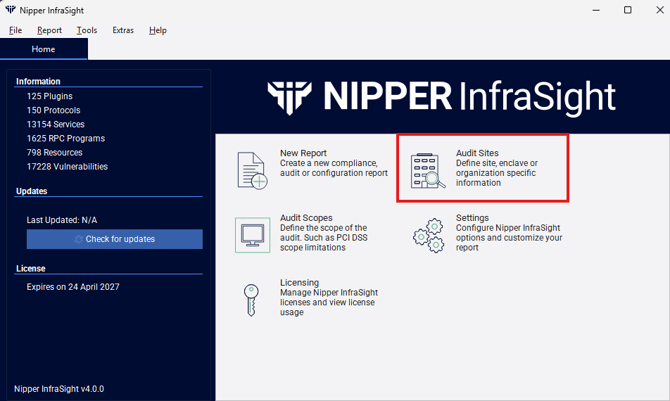
- From the "Home" page click on the Audit Sites icon, or select "Audit Sites" from the "Tools" menu.
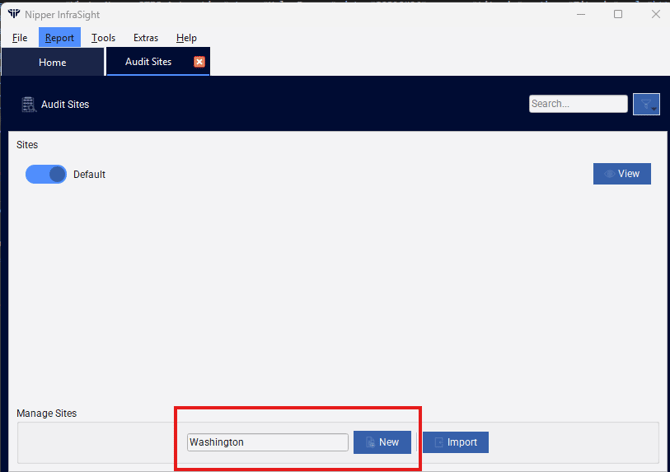
- At the bottom of the "Manage Audit Sites" window, enter your site name into the box and then click on the "New" button. This will create the Audit Site and make it active.
Tip: When selecting a name for your audit site it is best to choose something that represents the audit devices with a common configuration setup. For example you could name it after an office location, a department that has their own network setup, an enclave for DoD auditors or the company name for penetration testers. - That's it, you now have your new "Audit Site". You can review and edit the site properties by clicking on the "Edit" button, which has a pencil icon on it.
Switching Between Audit Sites
To change between Audit Sites simply click on the slider of the Audit Site that you want to become active. In doing this, the next time you perform an audit this new site will be used to provide the automated answers. Also, if you have the "Interactive Auditing" option enabled, you will be asked audit questions about the site.
Sharing Audit Sites
Sharing audit sites is useful if you have a colleague visiting a site your have already audited, or you would like to share with others in your team. Sharing your Audit Site is straight forward, follow the steps below:
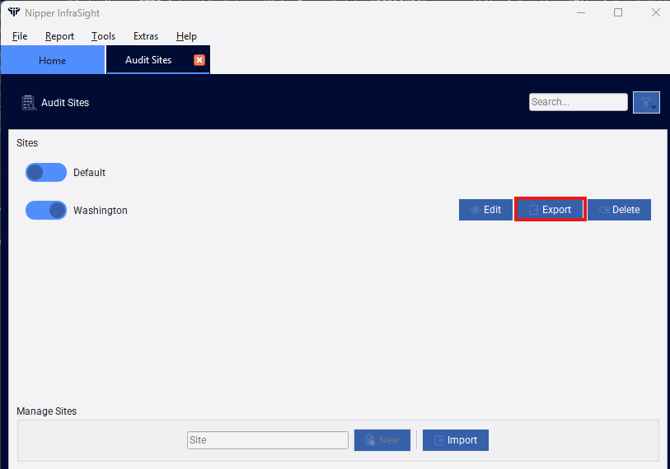
- From the "Manage Audit Sites" window, click on the "Export" button next to the Audit Site that you wish to share and then save it to a file.
- You can share that Audit Site with who you want.
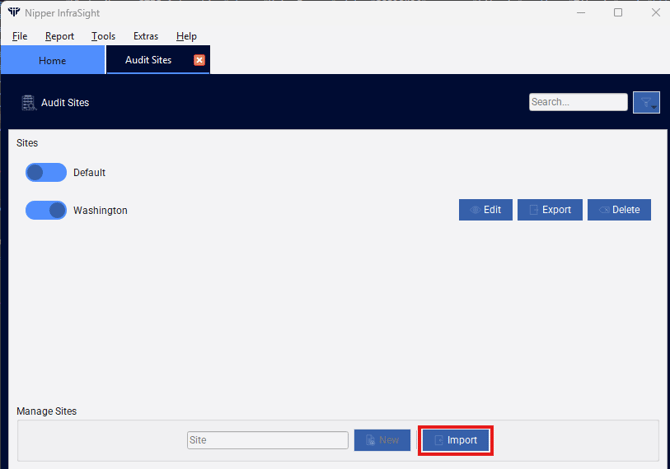
- From the "Manage Audit Sites" window on the system that you want to import the Audit Site on, click the "Import" button and select the file to import. If you have already got a site with the same name, the existing site will be overwritten.
The Default Audit Site
The "Default" Audit Site cannot be edited or deleted. When selected, only the default values will be provided during an audit and, when "Interactive Auditing" is enabled, you will be asked every time an audit check requires site-related information.