
- From the Nipper InfraSight home screen click Licensing.
- When the Manage Licenses screen appears click Add to add a new license.
- After you click Add, you will be asked for your Activation Code. This information will have been emailed to you when you purchased the license.
It can also be accessed through the Titania website, account.titania.com by logging into your account and then going to Your account. You will need to have registered for this account before accessing it. An email with your registration details will have been sent to you when you purchased the license or you can request an account by visiting account.titania.com and selecting Request an Account (license holders only).
Note: Nipper InfraSight allows you to add multiple licenses and will set the most recently added license active by default. If you wish to change which license is currently in use this can be amended within Tools -> Manage Licenses (or Ctrl & L) and toggling the required license on or off.
- If your license is enabled for offline activation then you can select Activation Code, via offline file based activation then click the Next button.
- Enter the Activation Code details into the relevant box and click Next.
- You will now need to save the License Activation Request on to a USB pen drive or other removable media as you will need to transfer the License Activation Request on to a system that has an internet connection. Select the Save License Activation Request button to save this request.
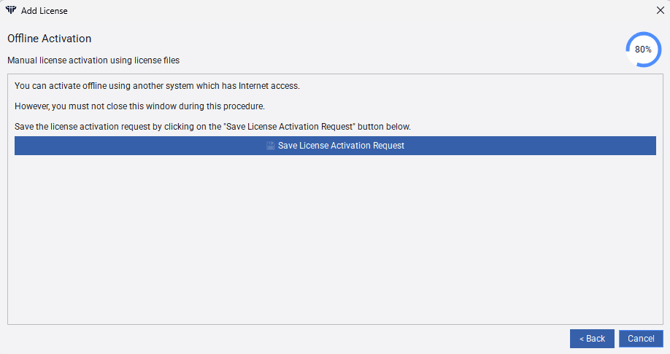
- Transfer the License Activation Request on to a system that has internet connectivity and go to https://titania.eup.nalpeiron.io/offline-activation#activation and upload the Activation request.
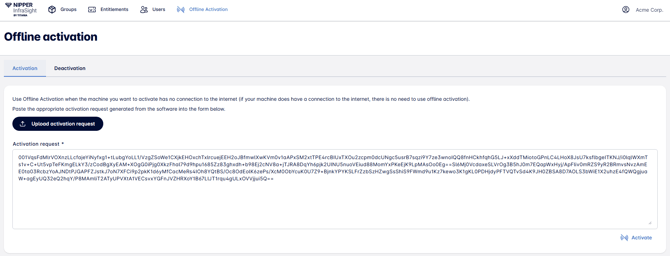
- Click Choose File then upload the License Activation Request file generated from the offline installation of Nipper InfraSight. Click Download Response to download the response file to your removable media and transfer back to the offline system.
- Click the Load License Activation Response button and load the activationConfirmation file.
- Click Next to complete the license activation process.
- After a brief License Activation screen, the license will be added into the software. Click Finish.
Nipper InfraSight is now fully installed and licensed on your machine, and you are ready to begin.