
This is the homepage:
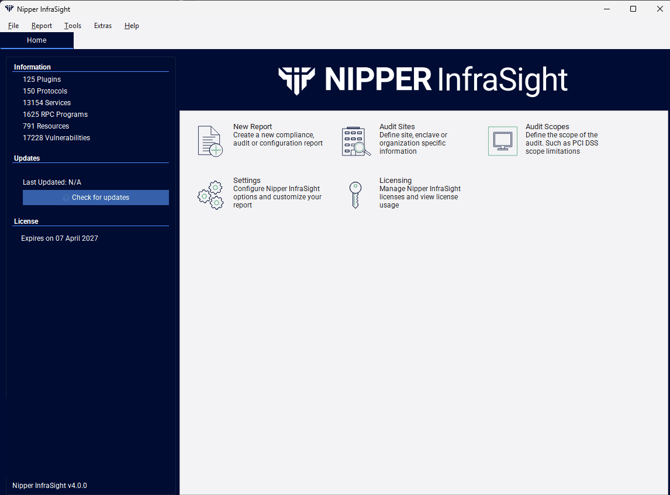
From the homepage, you have multiple options available for selection.
The Left-Hand Panel displays general Nipper InfraSight information which is dynamically updated on start-up. You are able to check for any Nipper InfraSight updates by clicking Check for updates. License information is shown at the bottom of the panel.
In the main section:
-
New Report will allow you to generate a new report within Nipper InfraSight.
-
Audit Sites allows you to define site, enclave or organization specific information.
-
Audit Scopes lets you define the scope of the audit, such as which IP addresses to include/exclude.
-
Settings provides configuration options for Nipper InfraSight, allowing you to tailor the experience to your specific requirements.
-
Licensing lets you add new licenses and manage existing ones.